AI Assistant Feature
Youtube:
View video: Introducing WebChart AI Assistant
Introducing WebChart AI Assistant - The future of healthcare technology is here
WebChart AI and capturing the patient Narrative (Whisper AI review)- FYI, the UI has changed since this was recorded)
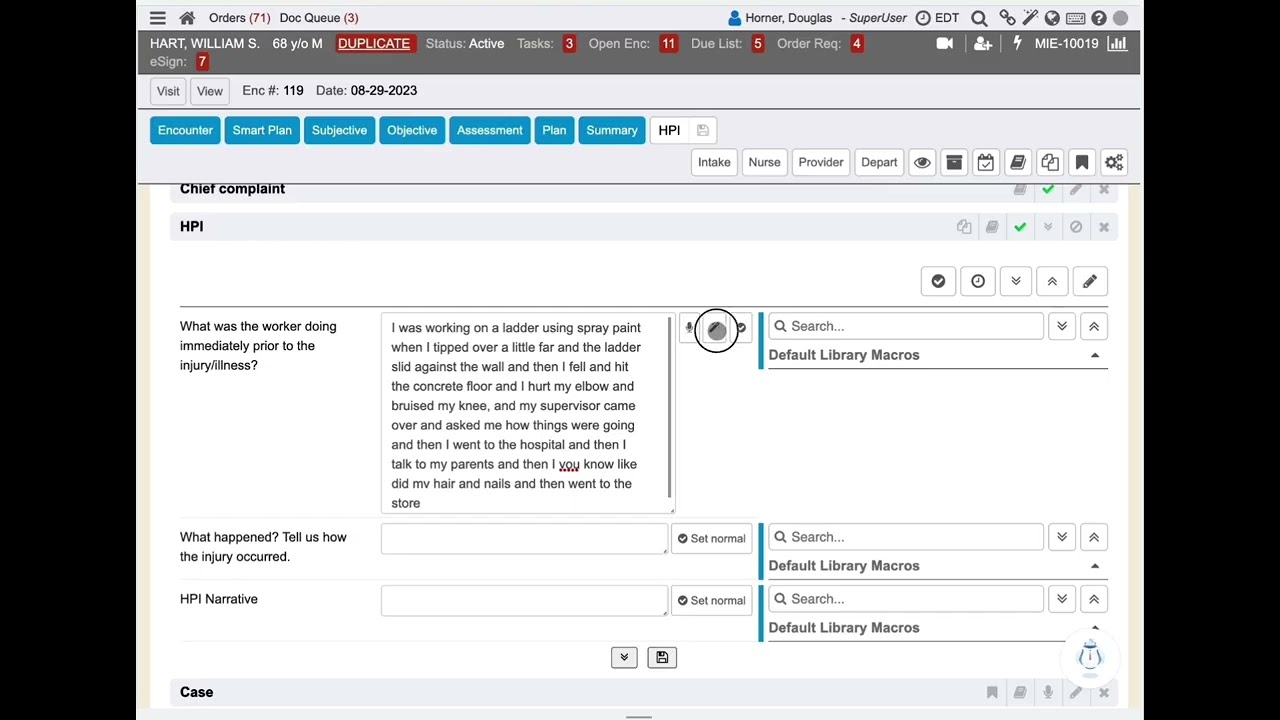
WebChart AI and capturing the patient Narrative
WebChart Generative AI (Create document UI Is going to be changing also AI summary used in this logic demoed is not committed or available to demol)
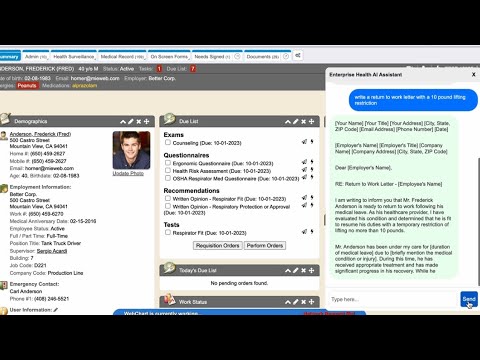
AI does Spanish
WebChart AI Assistant with Whisper Voice Recognition and AI voice Synthesis
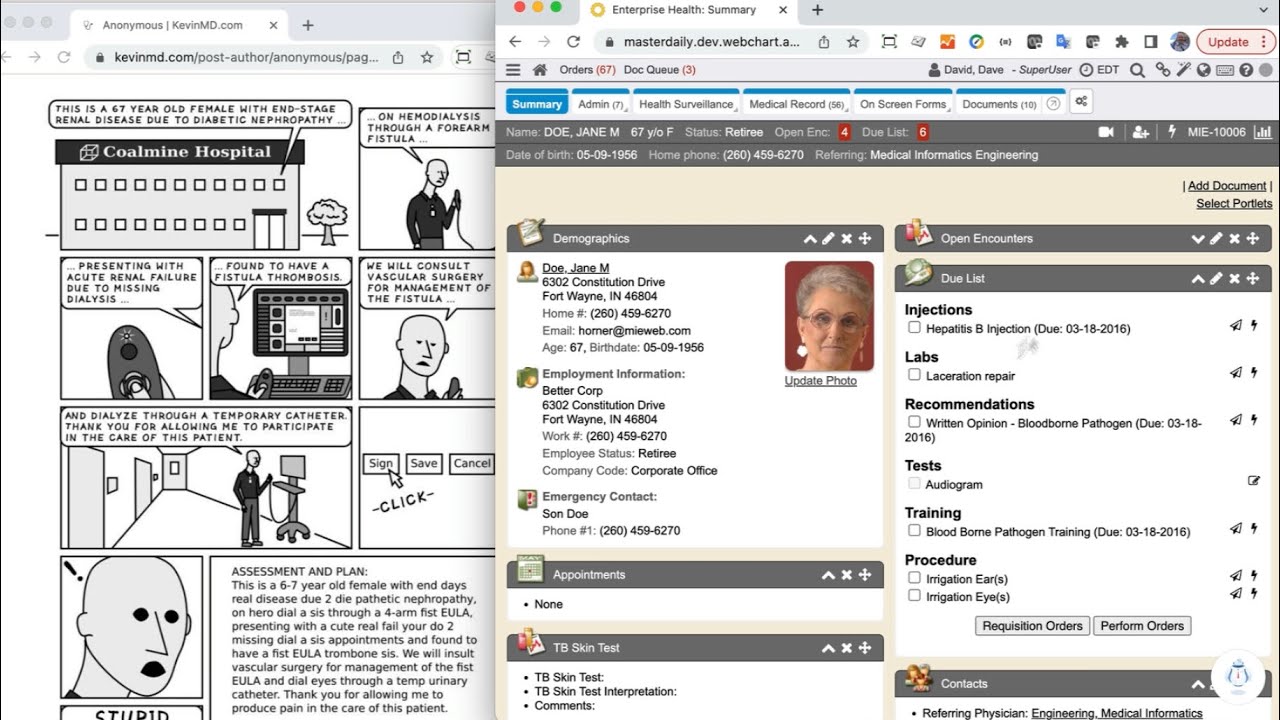
WebChart AI Assistant with Whisper Voice Recognition and AI Voice Synthesis 
AI Assistant
When the AI Assistant is enabled, Enterprise Health clients will see “Wellby”, an octopus icon as their AI assistant. WebChart clients will see the “WebChart AI Assistant” bot as their AI Assistant.

AI Assistant Icon
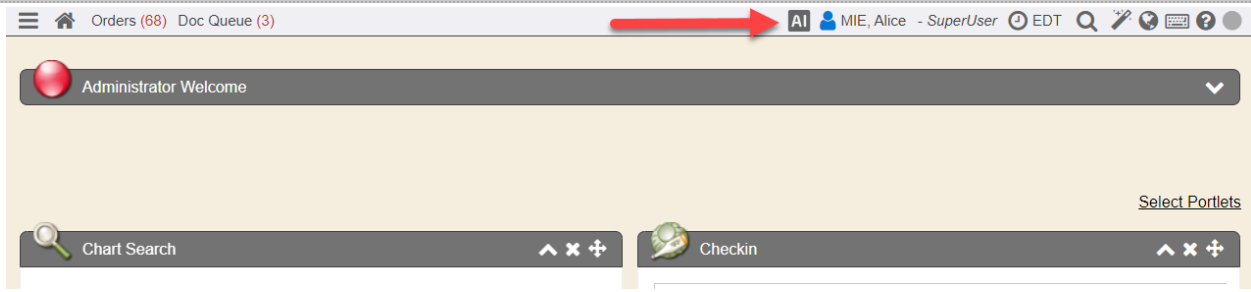
If AI is enabled for a database, the AI Icon will display in the header. Click on the AI Icon to open the AI Assistant and chat box.
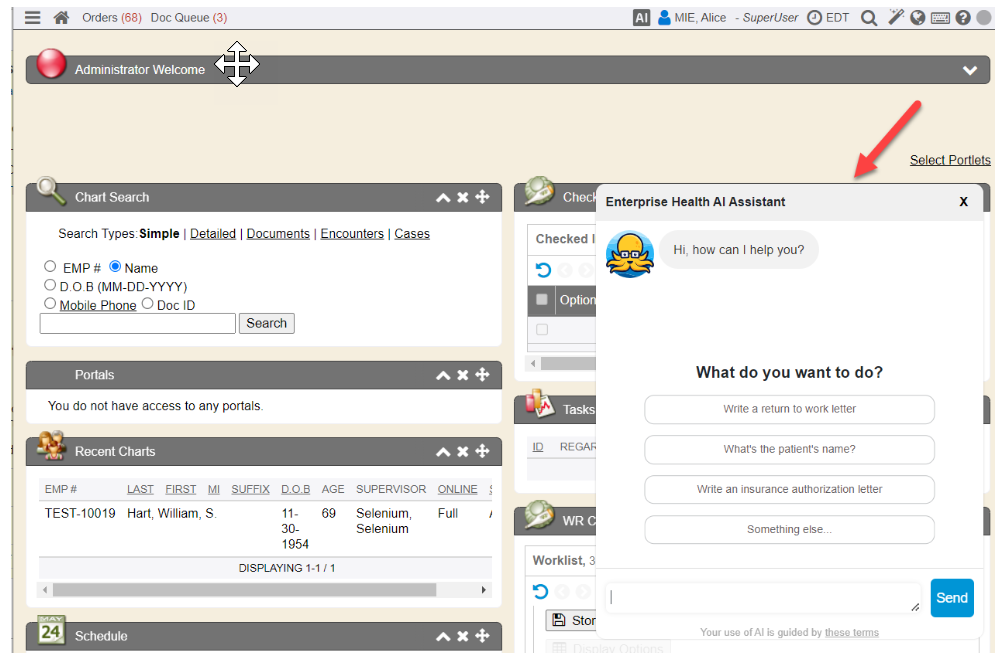
AI Chat Window
The AI chat window provides a list of suggestions in addition to the free text area provided at the bottom of the chat. The suggestion options can be customized in the layout “AI/ChatBox”. The chat box also supports language translations.
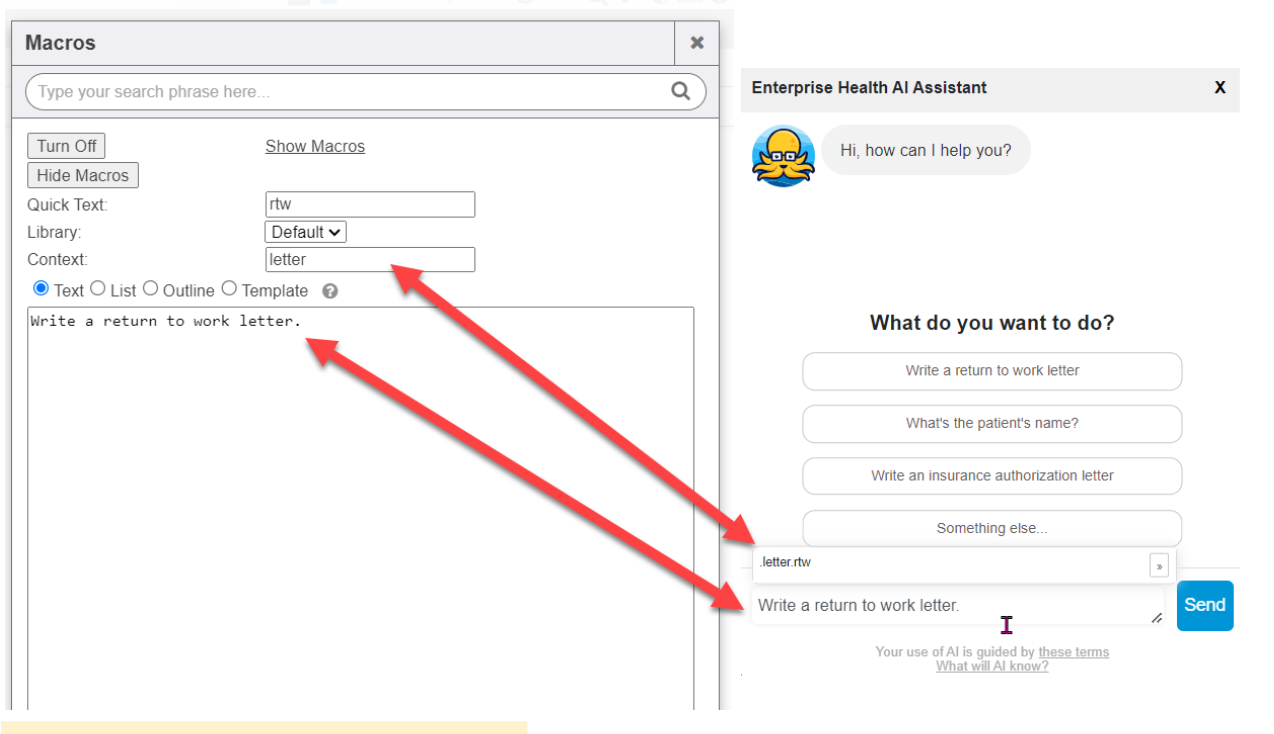
.macro in AI Assistant
Users with security rights to create/edit macros have access to create and manage macros in the AI Assistant.
AI Chat to Document Action
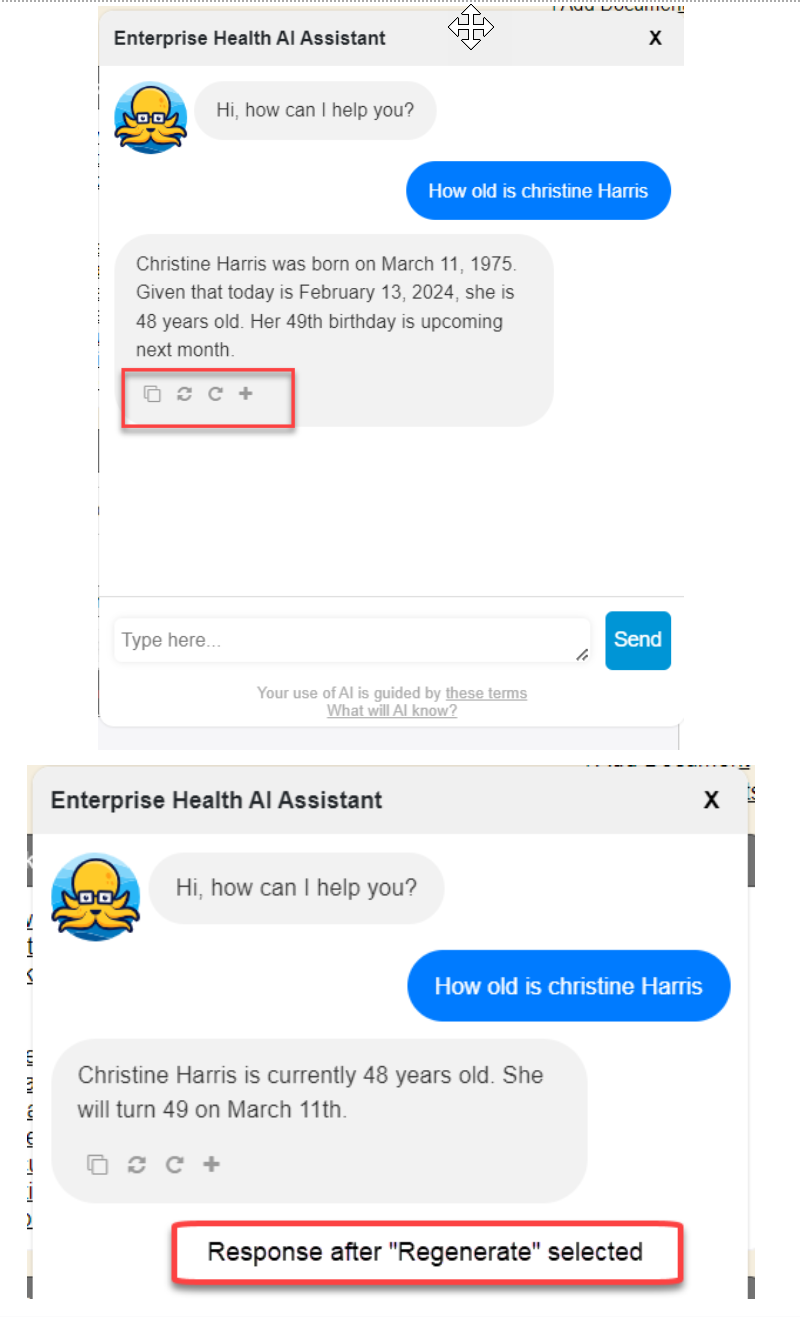
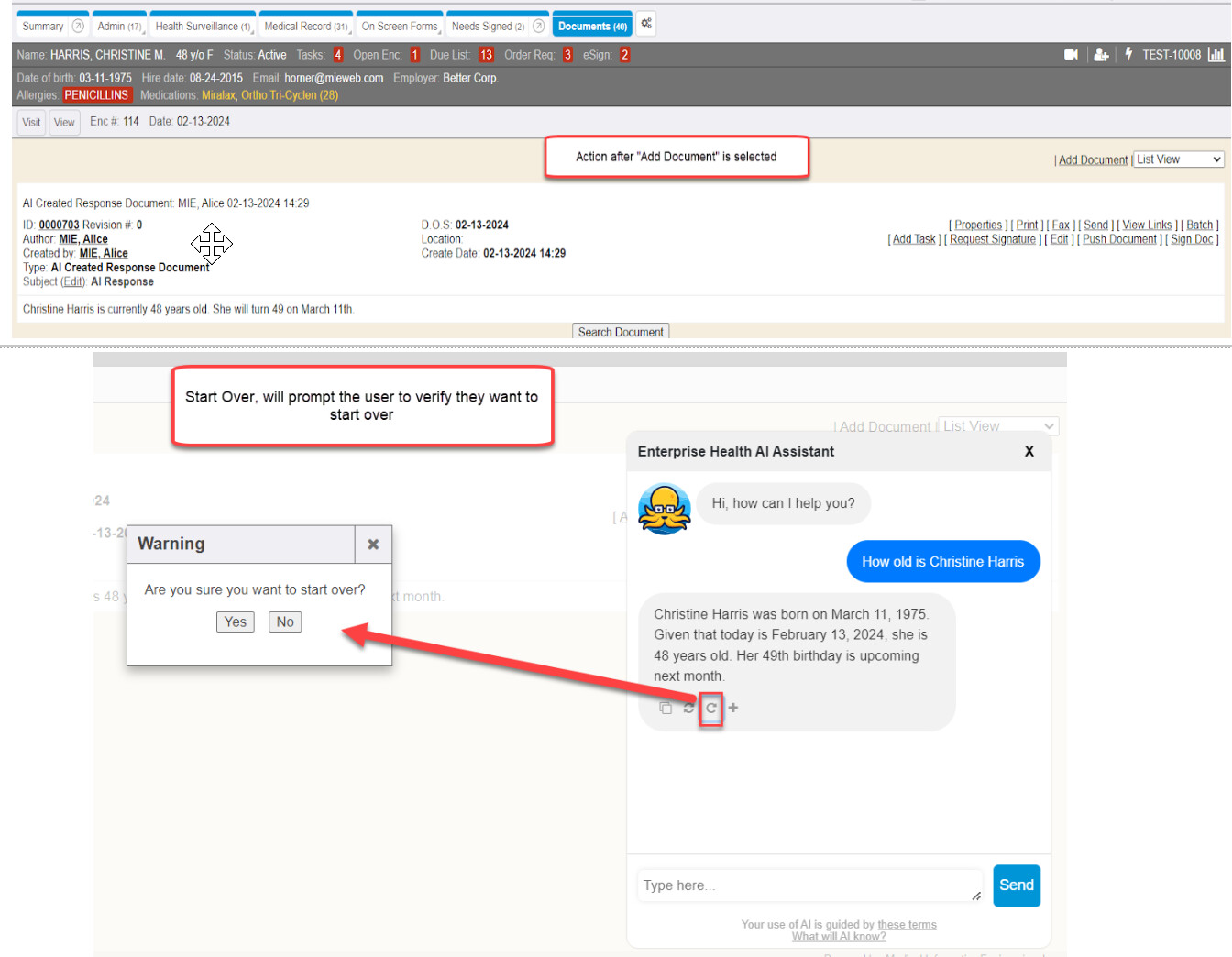
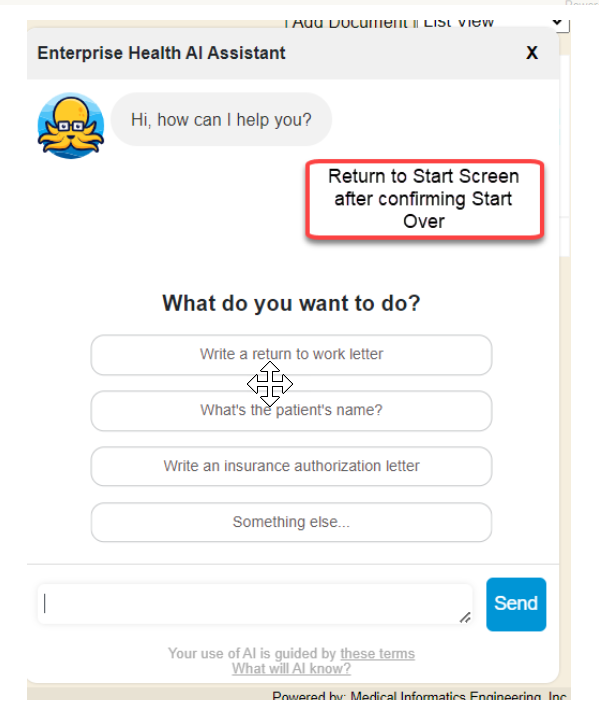
The AI Assistant response will now display 4 new functions at the end of each AI Assistant response. The functions are Copy, Regenerate, Start Over, and Add Document. Copy, will copy the AI response. The copied text can then be pasted into a text or word processing application. Regenerate, will attempt to ‘reword’ or ‘restate’ the response in another way. Start Over, will reset the AI Assistant and take the user back to the start/”What do you want to do?” screen. Add Document will take the AI Response and insert it as a document.
System Report Writing
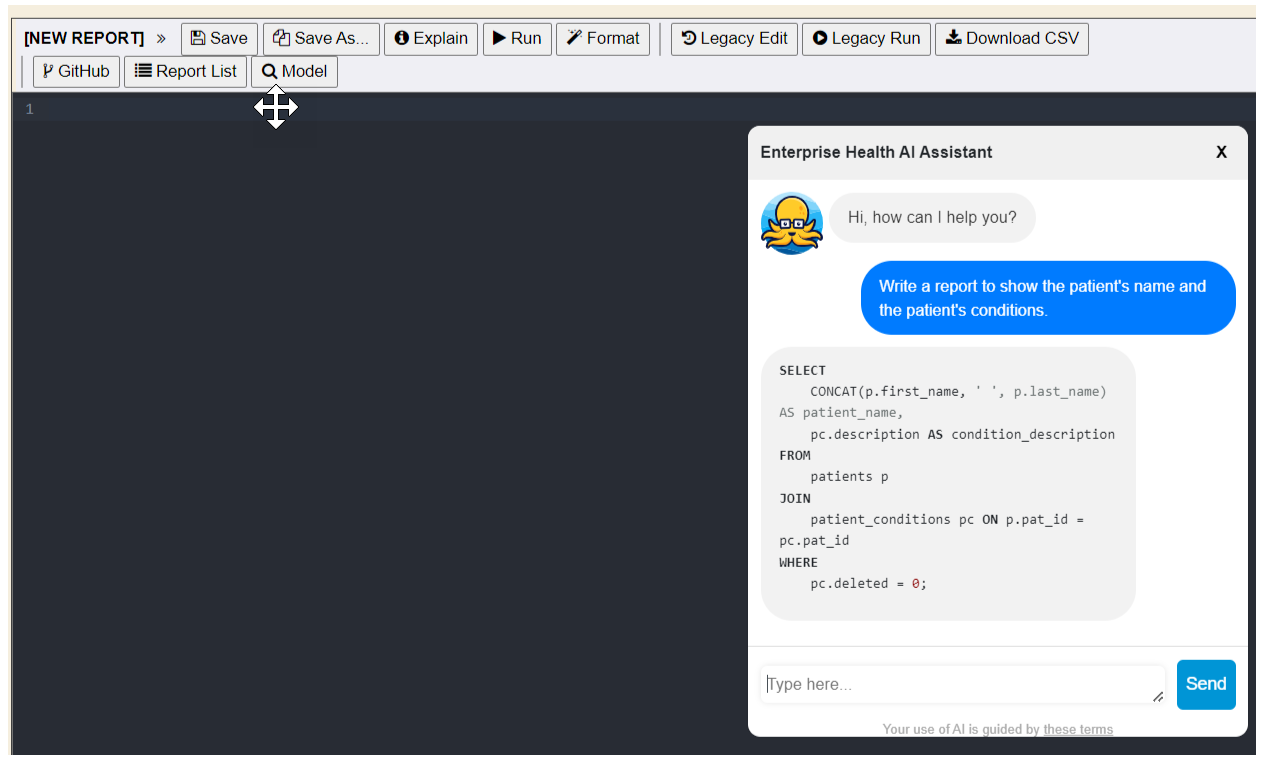
AI has been incorporated into the system report writing. The AI assistant context includes common subjects within the application, such as patients, observations, allergies, medications, and procedures. This feature will be available in the next release (RC202403), but may be committed back to RC202203 by the end of Q1.
AI Summary Chart Tab
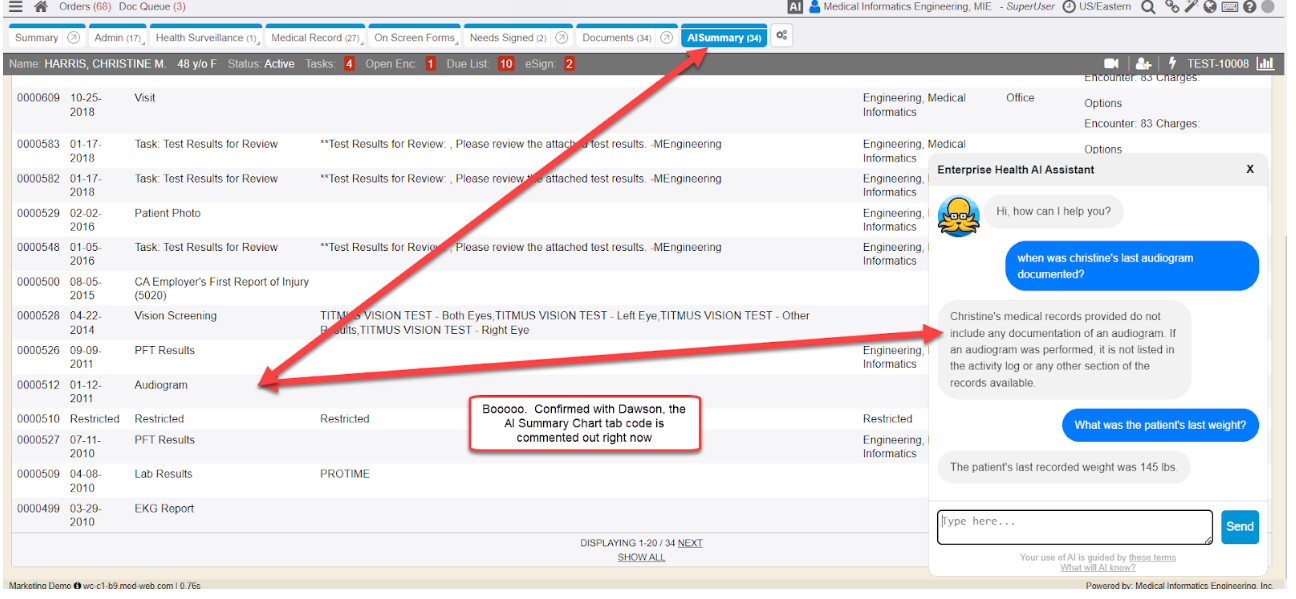
The AI Summary Chart tab typically will be automatically installed after an AI License Addendum has been completed or the EH client has been set up by the MIE implementer. The AISummary must be configured for clients utilizing AI. Clients can add or subtract documents that are leveraged in context for AI responses. For example, you can define which document should be excluded from an AI response, like Behavior Health-related documents.
AI Summary Flowsheet
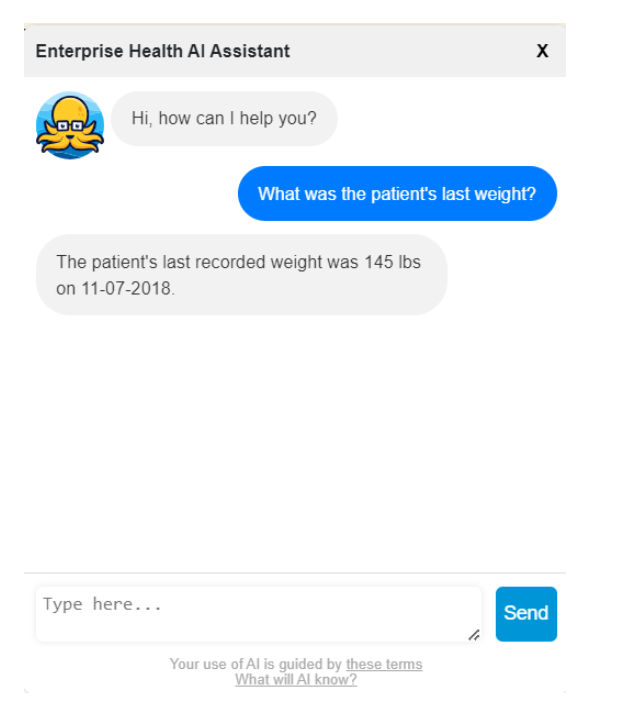
The AI Summary Flowsheet typically will be automatically installed after an AI License Addendum has been completed or the EH client has been set up by the MIE implementer. The AISummary Flowsheet defines which observations can be utilized when asking AI a question or directive. For example, If the flowsheet contains the observation for “weight”, then if AI is asked “What was the patient’s last weight”, the AI chat will respond with the last document observation for weight.